











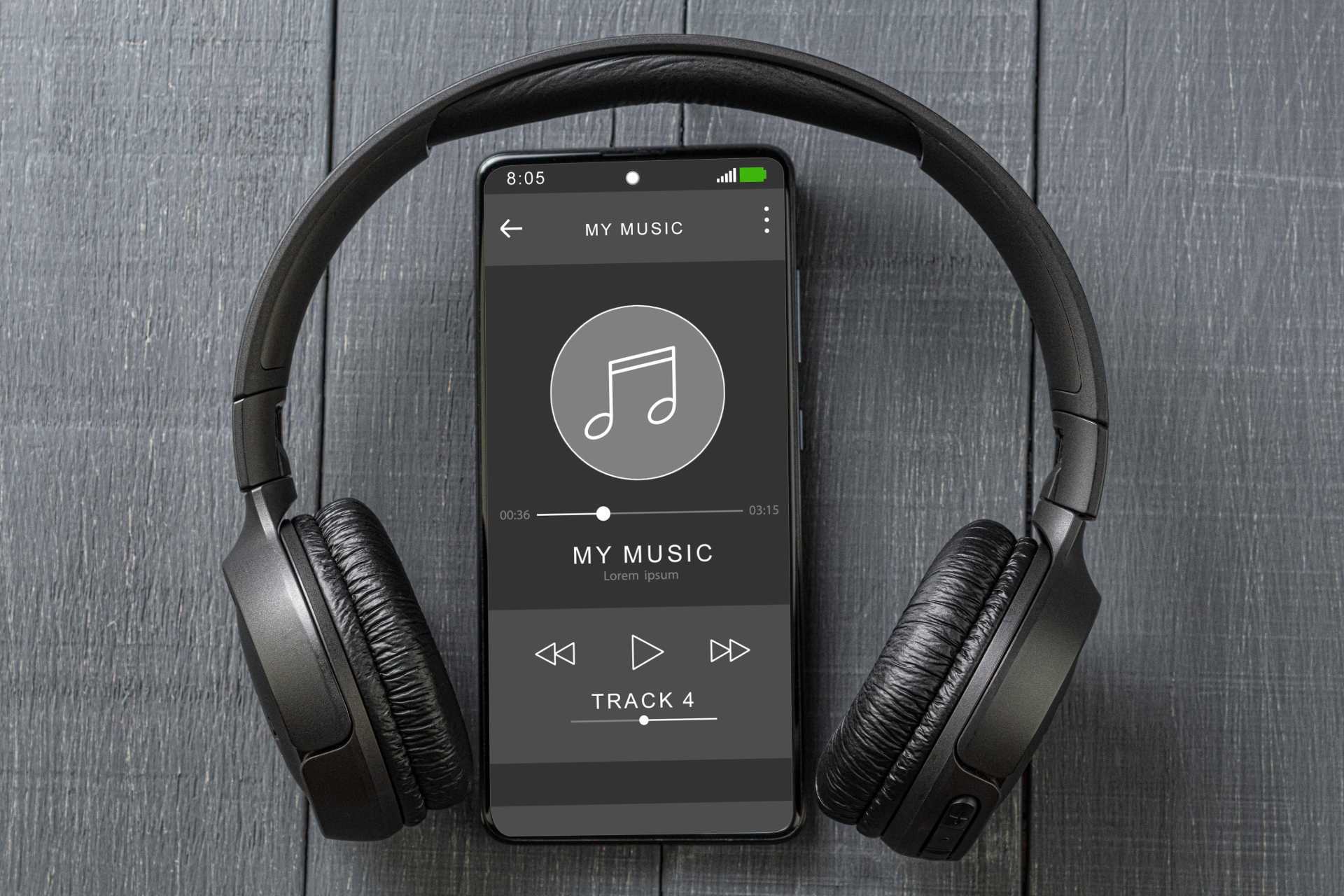
Whether you’re a casual listener or a dedicated audiophile, free music players have become one of the most essential tools in the modern digital lifestyle. From streaming playlists to organizing your local library, today’s free music players pack a surprising amount of power — all without costing you a penny. In this guide, we’ll walk you through everything you need to know about using a free music player on both your desktop system and your mobile device, so you can enjoy your favorite tunes wherever life takes you.
What Is a Free Music Player?
A free music player is software or an app that allows you to play, organize, and sometimes stream music without any subscription fees. These players support a wide range of audio formats including MP3, FLAC, WAV, AAC, and OGG, and many come loaded with features like equalizers, playlist management, podcast support, and even online radio. Some of the most popular free music players available today include:
- VLC Media Player — A versatile, open-source media player for desktop (Windows, macOS, Linux) and mobile (Android, iOS).
- Foobar2000 — A highly customizable audio player for Windows.
- Musify — A free music streaming and download platform.
- Audacious — A lightweight audio player for Linux and Windows.
- Spotify Free — The free tier of Spotify offers ad-supported music streaming on desktop and mobile.
- YouTube Music — Google’s free music streaming platform available on all devices.
Each of these tools has its strengths, and we’ll reference them throughout this guide.
Getting Started: Installing a Free Music Player on Your Desktop
Step 1: Choose Your Player
Start by deciding what matters most to you. If you have a large local music library, Foobar2000 or VLC are excellent choices. If you prefer streaming over the internet, Spotify Free or YouTube Music may suit you better.
For the purposes of this guide, we’ll use VLC Media Player as our primary example for desktop, as it is one of the most widely used and feature-rich free players available.
Step 2: Download and Install
- Visit the official VLC download page.
- Click Download VLC and select the appropriate version for your operating system (Windows, macOS, or Linux).
- Open the downloaded installer and follow the on-screen instructions.
- Once installed, launch VLC from your desktop shortcut or Start Menu.
Step 3: Adding Music to Your Library
Once VLC is open:
- Go to Media > Open File to play a single track.
- To open an entire folder of music, go to Media > Open Folder.
- For a more organized experience, navigate to View > Playlist to see all your added tracks in a list.
VLC supports virtually every audio format, so you don’t need to worry about file compatibility.
Step 4: Using the Equalizer
VLC comes with a built-in equalizer that lets you fine-tune your sound:
- Go to Tools > Effects and Filters.
- Click the Audio Effects tab.
- Check the Enable box next to the Equalizer.
- Choose from presets like Pop, Rock, Classical, or Bass Boost, or drag the sliders manually.
Step 5: Creating Playlists
- Open your Playlist view (View > Playlist).
- Drag and drop files into the playlist window.
- Right-click the playlist and select Save Playlist to File to save it as an M3U file for future use.
Using Spotify Free on Desktop
If you prefer streaming, Spotify is one of the best free options:
- Download the Spotify desktop app or use the web player.
- Create a free account at spotify.com.
- Use the Search tab to find artists, albums, or playlists.
- Click Add to playlist on any song to save it for later.
- On the free tier, you’ll hear occasional ads and shuffle-only play on mobile — but desktop gives you more control.
You can also explore curated playlists on Spotify’s Browse page to discover new music.
Using a Free Music Player on Mobile
Mobile music players have evolved dramatically. Your smartphone is essentially a pocket-sized DJ setup, especially with the right app installed.
Top Free Music Player Apps for Mobile
- VLC for Android / VLC for iOS
- Musicolet — A powerful offline music player for Android with no ads.
- Poweramp — A premium-quality player with a free trial.
- YouTube Music
- Deezer Free
Setting Up VLC on Mobile (Android)
- Open the Google Play Store and search for VLC.
- Tap Install and wait for the download to complete.
- Open VLC. It will automatically scan your device for audio files.
- Tap Audio at the bottom to see all detected music.
- Browse by Artist, Album, Genre, or Song.
Setting Up VLC on Mobile (iOS)
- Open the App Store and search for VLC for Mobile.
- Tap Get to install.
- To add music, connect your iPhone to a computer and transfer files via iTunes/Finder, or use VLC’s built-in Wi-Fi file transfer feature.
Using Musicolet (Android Only)
Musicolet is a fan favourite for Android users who want a clean, offline music experience:
- Install from the Play Store.
- Grant storage permissions when prompted.
- Your music library loads automatically from your device storage.
- Use the Queue system to line up songs without interrupting what’s playing.
- Musicolet supports multiple queues — a rare feature that lets you switch between different sets of songs seamlessly.
Tips and Tricks for Getting the Most Out of Your Free Music Player
1. Use Gapless Playback
Many players like VLC and Musicolet support gapless playback, which removes the silence between tracks — perfect for live albums or DJ mixes. Look for this setting in Audio Settings or Playback Settings.
2. Organize Your Tags
Properly tagged music files make browsing your library a pleasure. Use a free tool like Mp3tag to edit and organize your ID3 tags (artist, album, genre, artwork).
3. Use Sleep Timers
Most mobile players offer a sleep timer. This is perfect for winding down at night — set it to stop playback after 30 or 60 minutes so you don’t drain your battery overnight.
4. Explore Equalizer Presets
Don’t ignore the equalizer. Small adjustments can make a huge difference in how your music sounds through different headphones or speakers. Apps like Equalizer APO (Windows) let you apply system-wide audio improvements.
5. Sync Across Devices
If you use Google Play Music (now YouTube Music), you can upload up to 100,000 songs from your personal library to the cloud for free and stream them on any device.
6. Stream Internet Radio
Both VLC and many mobile apps support internet radio streams. Head to Radio-Browser.info to find thousands of free streams by genre, country, or language.
Troubleshooting Common Issues
| Problem | Solution |
|---|---|
| Music not detected on mobile | Check storage permissions in app settings |
| Audio cuts out | Disable battery optimization for the music app |
| File format not supported | Convert audio using Audacity or Handbrake |
| Poor sound quality | Enable Hi-Fi or lossless mode in equalizer settings |
| App crashes on startup | Clear app cache from device settings |
Final Thoughts
Free music players have never been more powerful or more accessible. Whether you’re managing thousands of local files with Foobar2000, streaming the latest drops on Spotify Free, or enjoying a clean mobile experience with Musicolet, there’s a solution for every type of listener — and it doesn’t have to cost a thing. The key is finding the player that matches your listening habits, spending a few minutes setting it up properly, and then letting the music do the rest.
Explore, experiment, and most importantly — enjoy the music.
Share your thoughts and experiences in the comment section below! Your comment may be our next subject of publication, and your name will be added as credit to you. Black Focus Magazine.